Salasana unohtaminen Worddpress sivustolle on yleensä se ikävin tapaus. Näitä syitä voivat olla hakkeroitu sivusto, vanhat käyttäjät, jotka eivät ole organisaatiossa enää töissä tai muut syyt. Monesti voi olla tilanne, että yhtään tunnusta ja salasanaa ei ole tallessa. Silloin sinun tulee käydä vaihtamassa tunnukset suoraan tietokannasta. Tietokantaan pääsee aina kun on palvelimen tunnukset. Ota huomioon että palvelin tunnukset eivät ole sama asia kun wordpress tunnus. Palvelin tunnukset ovat pääsy verkkosivustosi ytimeen.
On olemassa myös muitakeinoja, mutta tämä on kaikkein suoraviivaisin.
Tässä ohjeessa näytetää keino vaihtaa salasana suoraan tietokannasta. Yleensä vaihtaminen onnistuu ongelmitta, mutta jos olet epävarma ota meihin yhteyttä.
Tapa 1: Palauta phpMyAdmin avulla
Vaihe 1: Avaa phpMyAdmin
Aloitetaan perus asioista ja terminologiasta. PHPMyAdmin on cPanelin tietokantatyökalu. Se antaa sinulle pääsyn mihin tahansa tietokantaan, joka on web-hotellissa. Tämä työkalu antaa sinulle täydellisen hallinnan palvelimen sisällä oleviin tiedostoihin. Nämä tunnukset tulisi olla tiedossa vain organiaation luotetuimmilla jäsenillä. Tällä työkalulla on mahdollista, teoreettisesti aiheuttaa tarpeettomia tietoturvariskejä tai mahdollistaa sivuston rikkoutumisen.
Ennen kuin aloitat tietokantaan, muokkaamisen ota aina varmuuskopio. OTA AINA varmuuskopio. Tätä vinkkiä ei voi koskaan liikaa painottaa 🙂
Aloitetaan salasanan vaihtaminen
Etsi cPanelista kohta phpMyAdmin. klikkaa linkkiä.
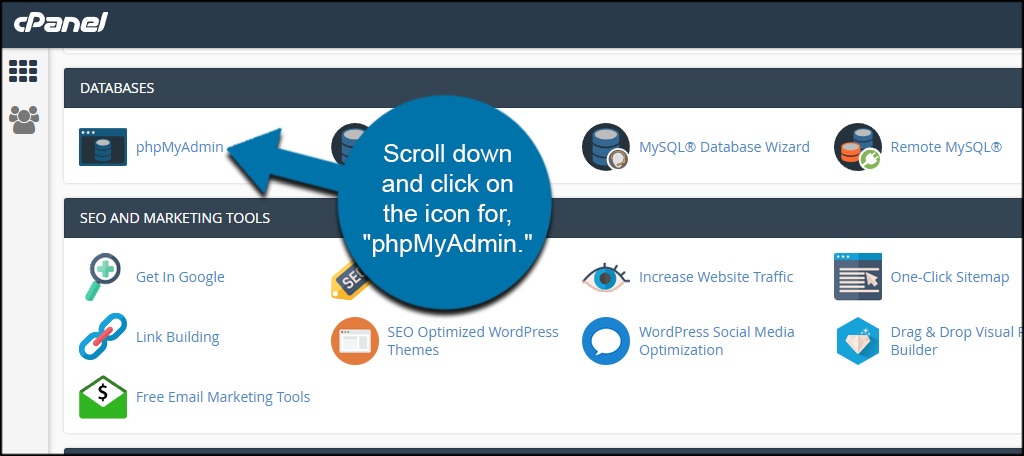
Vaihe 2: Etsi tietokantasi
Napsauta vasemmassa sarakkeessa verkkosivuston tietokantaa. Jos et ole varma, mitä tietokantaa sivustosi käyttää, voit tarkistaa wp-config.php-tiedostostasi.
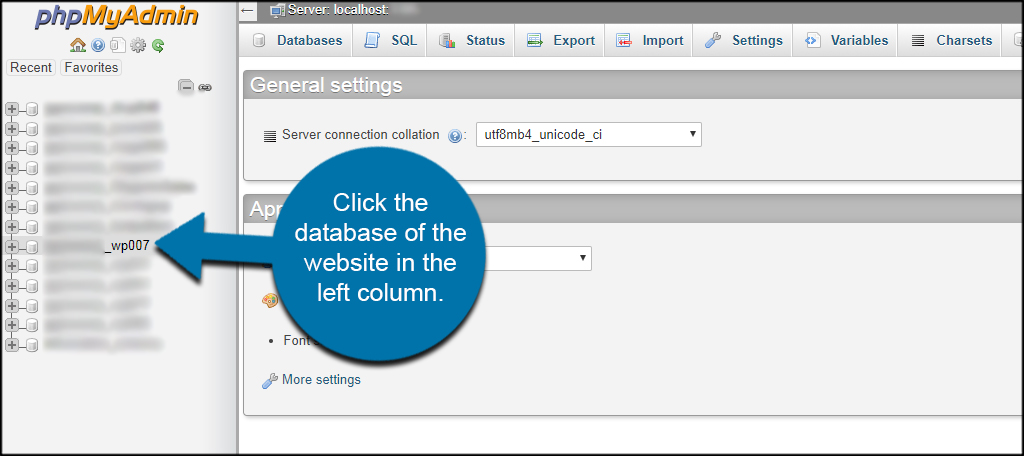
.
Vaihe 3: Etsi wp_users-tiedosto
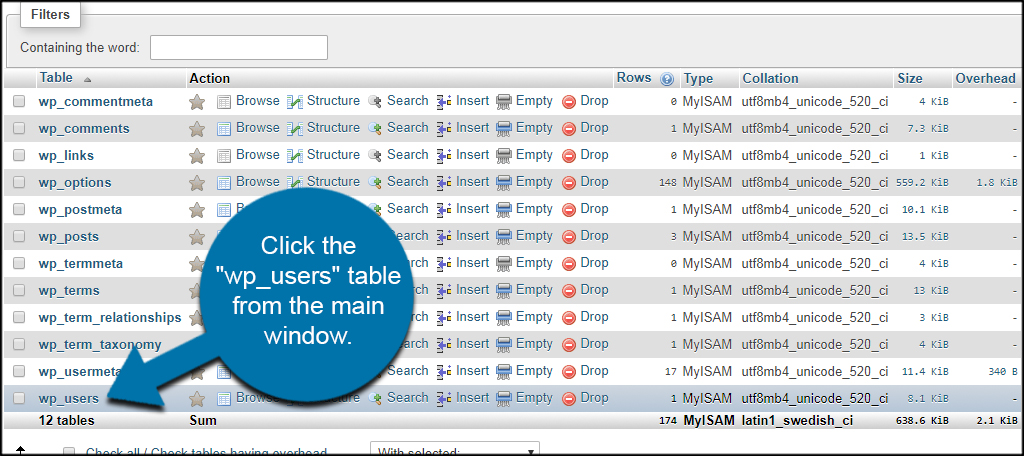
WordPress tallentaa käyttääjät taulukkoon, minkä nimi on wp_users.
Klikkaa ”wp_users” -taulukkoa.
Vaihe 4: Klickkaa muokkaa nappia
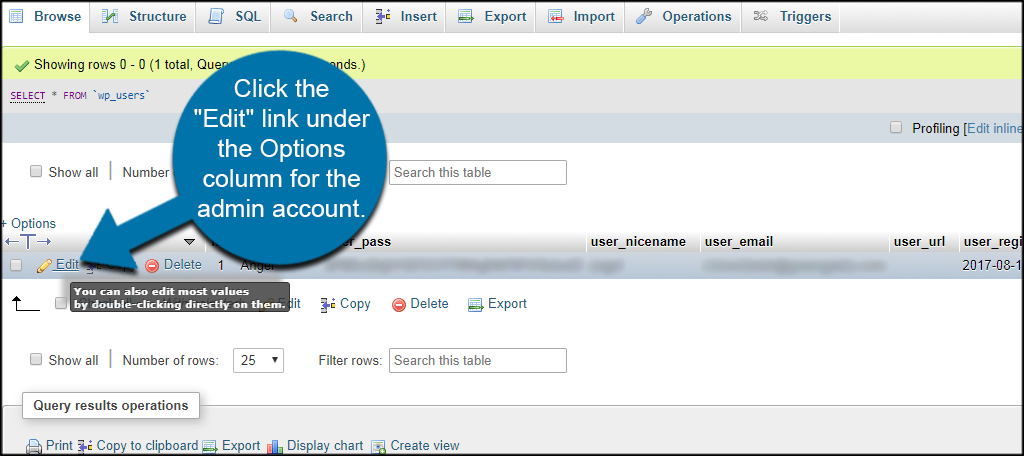
Paina järjestelmänvalvojan tilin asetukset-sarakkeen muokkaa linkkiä. Jos käyttäjiä on useita, sinun on varmistettava, että muokkaat oikeaa. Tarkista aina ”user_nickname”- tai ”user-email”-sarakkeiden alta varmistaaksesi, että muokkaat järjestelmänvalvojan tiliä.
Vaihe 5: Vaihda salasanasi
Seuraavaksi tulemme käyttämään sisäänrakennettua MD5 functiota.
Mikä on MD5 functio?
PHP-merkkijono md5() on ennalta määritetty funktio. Sitä käytetään merkkijonon MD5-hajautusarvon laskemiseen. Se käyttää RSA DATA -suojausta. Se palauttaa hashin 32 merkin heksadesimaalilukuna.
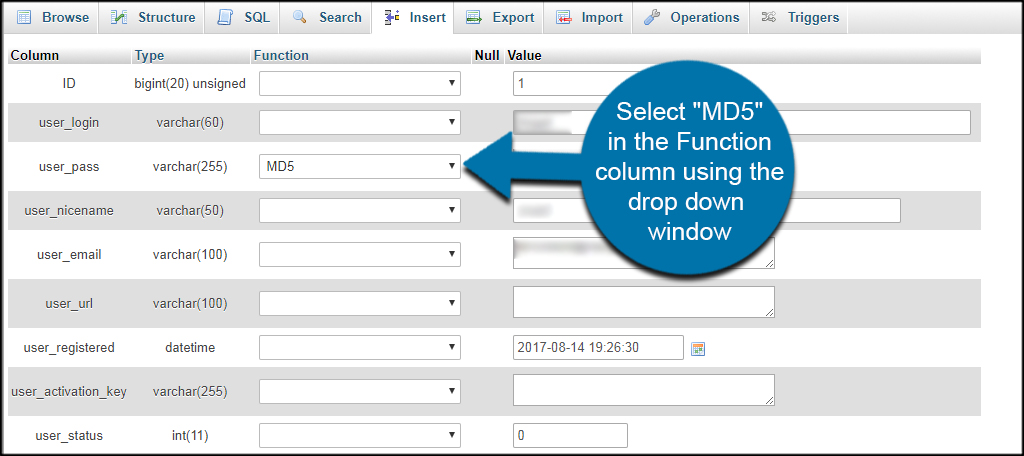
Valitse Function-sarakkeesta ”MD5” käyttämällä use_pass -rivin avattavaa ikkunaa.
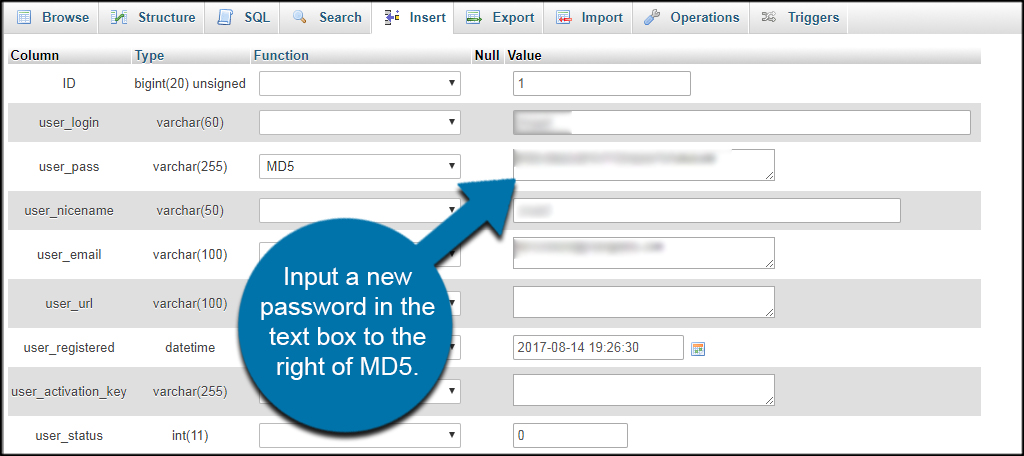
Kirjoita uusi salasana oikealla olevaan sarakkeeseen
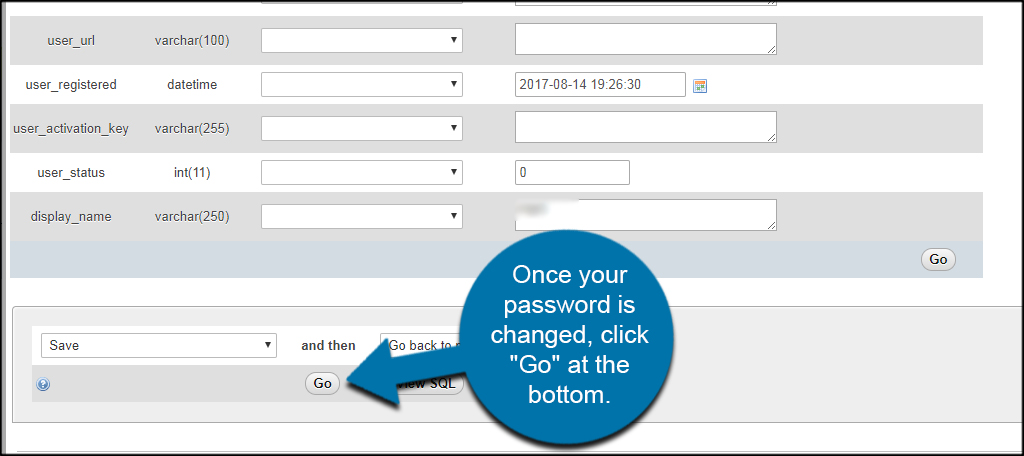
Kun olet kirjoittanut uuden salasanan paina alhaalta olevasta ”go” napista. Go nappi tarkoittaa samaa kun suorita, tai tallenna muutokset.
Salasanasi on nyt vaihdettu, ja voit kirjautua sisään.
Method 2: Password Reset with Softaculous
Step 1: Access Softaculous
Another alternative to reset your password is via Softaculous. Of course, this is only available to you if you used Softaculous in the first place, but if you did, you’ll be pleased to discover it is by far the easiest way to manually reset the WordPress admin password.
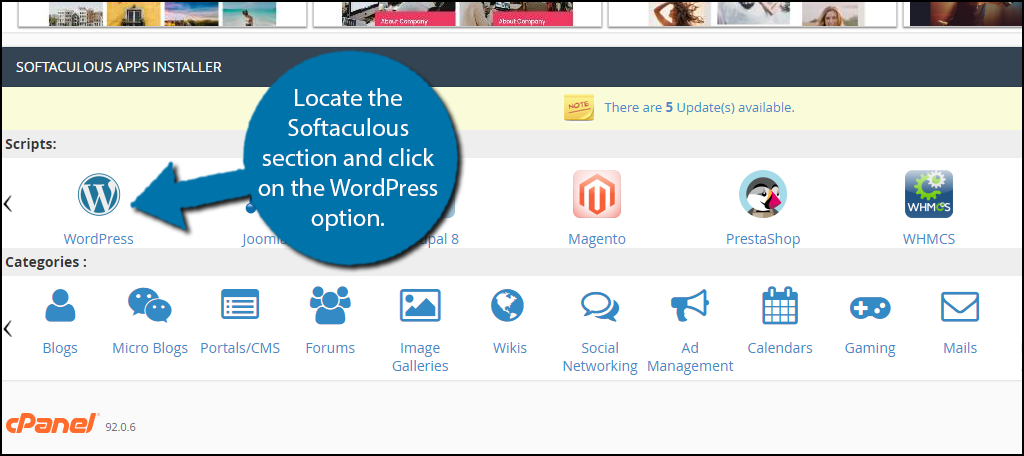
Login to your cPanel, locate the Softaculous section and click on the WordPress option.
Step 2: Edit Your WordPress Install
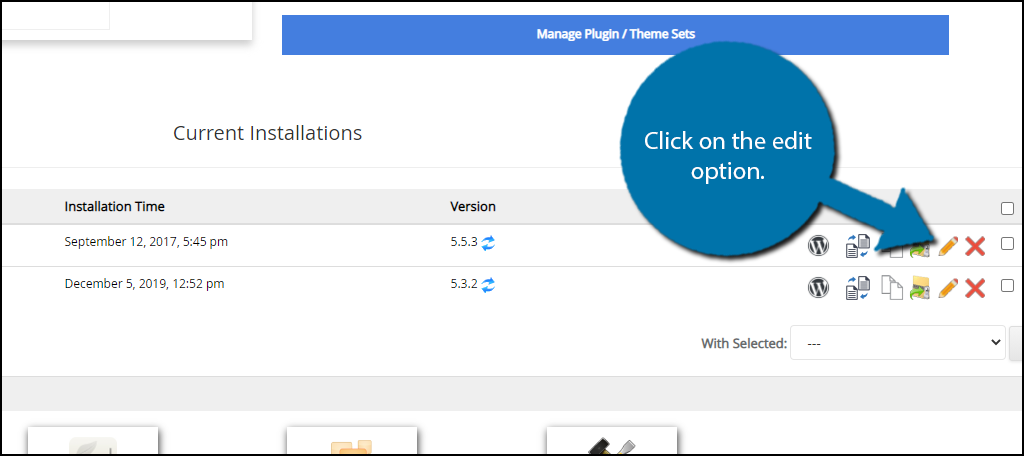
You can now view all of the WordPress installs on your account. Locate the one you want to reset the password on and click on the edit option.
Step 3: Change the Admin Password
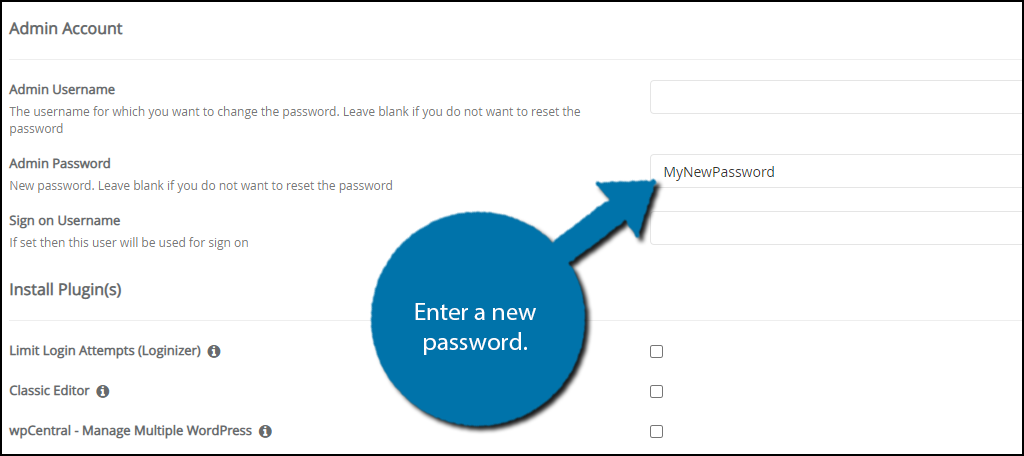
At the top, you will see the installation settings. You can ignore these. Scroll down to the Admin Account section. All of the fields will be blank, and they should remain blank unless you want to change them.
In this case, we want to edit the Admin Password field. However, you must enter the admin username first. After all, you can have multiple admin accounts.
Whatever you enter will be the new password. Use a strong password and write it down to avoid forgetting.
Scroll down to the bottom of the page and click on the “Save Installation Details” button.
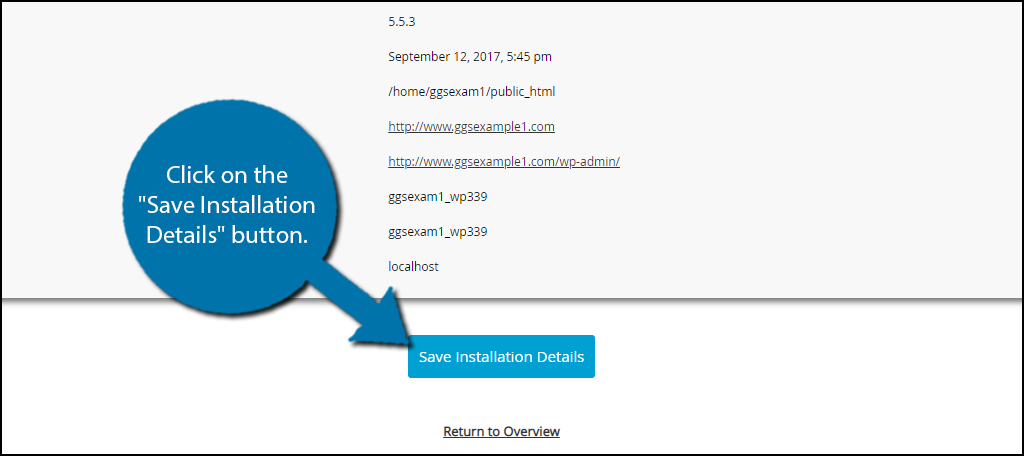
Note: If you only enter the password, you will get a red message asking you to enter the user name.
Congratulations, your password has now been reset, simply go to your WordPress website and login with the new credentials.
Use Strong Passwords
It cannot be said enough how important it is to use a strong password. For admin accounts, the password is literally safeguarding your website. Here are some tips to help you make a strong password.
First and foremost, refrain from using common phrases, your name, or most popular, date of birth. These can usually be figured out if someone knows you well enough and with how easy it is to access things like social media, it’s not safe to do this.
Look at the list of most common passwords and ensure that yours is not on the list. For instance, even in 2020, 123456 is still the most common password.
Include multiple capital letters and numbers to your password. This dramatically increases the strength of your password. If you don’t feel comfortable making your own passwords, don’t worry, you can have a password made for you with a password generator.
Always use a strong password.
Keep Your Site Secure
Website security is of utmost importance. Regardless of whether you lost your password or the account was hacked, you should always monitor the safety of your data. While it may be easy to undo some of the damage from a hacker gaining access to a site, you may face a lot of problems afterward.
What’s your favorite security plugins to use with WordPress? How often have you forgotten a complicated password?